Highlight or type
Select text on a page and choose Ask QuizWhiz from the right-click menu, or type a question in the extension popup.
 QuizWhiz.
THE AI STUDY EXTENSION FOR CHROME
Highlight a question, type it, or draw a box around it. Get an explanation in Chrome and revisit it in Study Hub.
Free download · QuizWhiz account · Manual install
TRY A SAMPLE QUESTION
Why is 3/4 greater than 2/3?
With a common denominator of 12, 3/4 becomes 9/12 and 2/3 becomes 8/12. Nine twelfths is greater than eight twelfths.
Interactive preview · Sample answers · No AI request
THE WORKFLOW
Select text on a page and choose Ask QuizWhiz from the right-click menu, or type a question in the extension popup.
QuizWhiz sends the question for an AI explanation when you ask.
Read the explanation without leaving the page. You stay in control of what you enter or submit.
QUIZWHIZ PRO · EARLY ACCESS
The Chrome extension is free to download. Hosted AI is available to accounts with early access.
01 / SHORT TERM
$7.99 / week
View weekly checkout02 / MONTH TO MONTH
$19.99 / month
View monthly checkout03 / ANNUAL
$131.88 / year
View yearly checkoutCHROME SETUP
Unzip the download. The folder you select should contain manifest.json.
Open chrome://extensions, turn on Developer mode, and choose Load unpacked. Select the extracted folder.
Click the QuizWhiz icon in Chrome and sign in with your QuizWhiz account. The extension connects to hosted AI automatically.
ON THE WEB AND IN CHROME
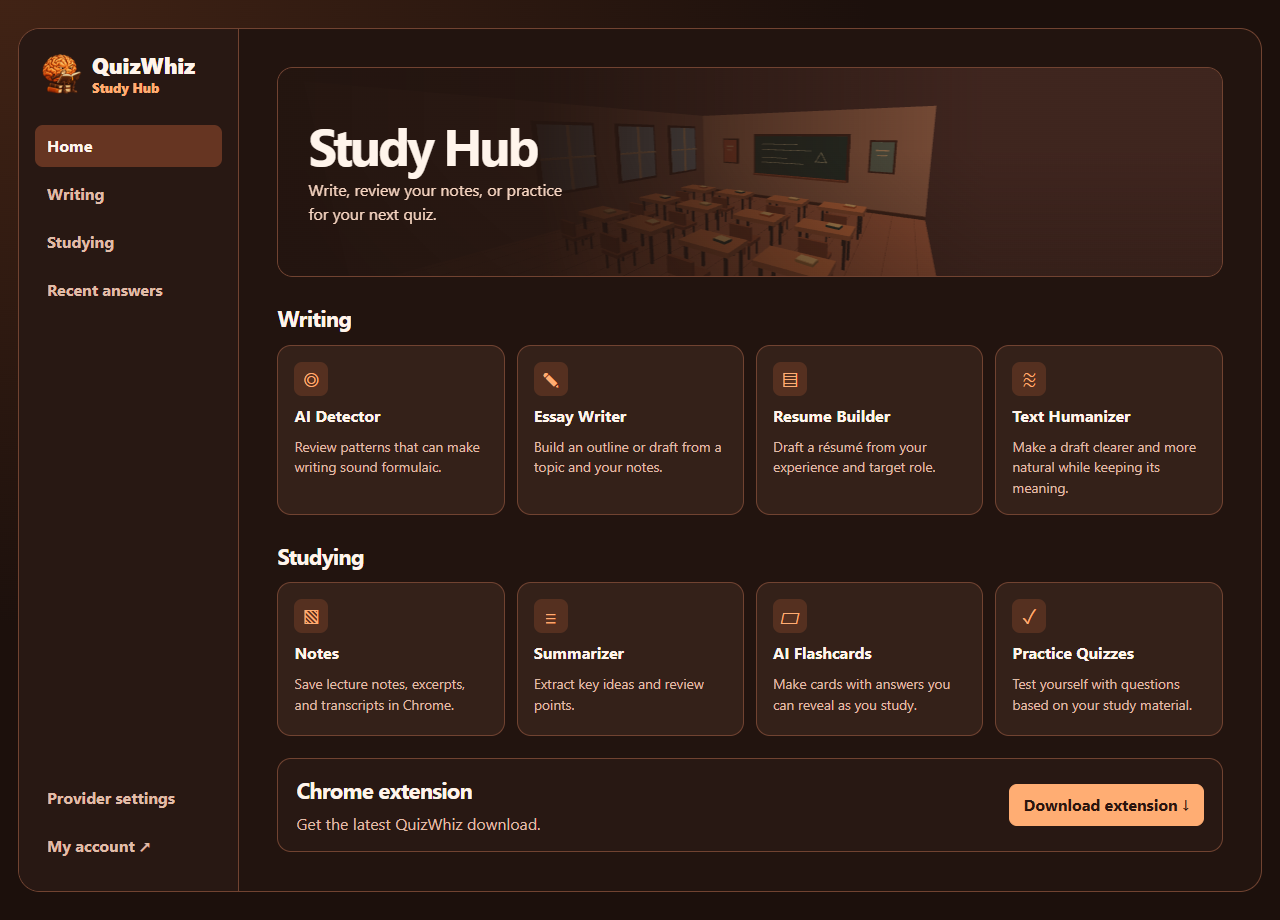
Keep notes and recent answers, generate summaries, flashcards, and practice quizzes, or use the writing tools to draft an essay, build a résumé, and revise text.
Open Study Hub and sign in with your QuizWhiz account. In Chrome, you can also open Study Hub from the extension menu.
STUDY ON YOUR TERMS
Use QuizWhiz to practice, review difficult concepts, and understand how to solve a problem. Follow school rules for tests and assignments.
GOOD TO KNOW
Sign-in, privacy, and Chrome permissions.
For OpenAI, create an account at platform.openai.com and generate an API key under API keys.
For local servers (LM Studio, Ollama), no API key is needed—just use http://localhost:1234/v1 (or your server's URL) and leave the API key field empty.
https://api.openai.com/v1
gpt-4o-mini
sk-proj-...
Important: Remote endpoints must use https://. Localhost servers can use http://.
QuizWhiz does not use analytics. QuizWhiz forwards AI requests to its configured provider. Providers may retain requests under their own policies. The extension stores its sign-in credential locally.
Study Hub keeps notes and recent answers in this Chrome profile. Read the QuizWhiz privacy policy for details.
Yes. On a regular webpage, open the extension and click Snapshot. Drag a box around the question and release to send the crop to your configured provider. The answer appears on the page. Click Quick Learn to see the reasoning. Press Esc to cancel.
activeTab: Access selected text when you use the context menucontextMenus: Add "Ask QuizWhiz" to the right-click menustorage: Save your settings locallyscripting: Inject the floating answer panel onto pagesoptional_host_permissions: Access your configured API endpoint (Chrome prompts you to allow; never granted automatically)READY WHEN YOU ARE